![Fishbowl • Lockup • Full-Color • On-White@2x-2.png]](https://docs.fishbowl.com/hs-fs/hubfs/Fishbowl%20%E2%80%A2%20Lockup%20%E2%80%A2%20Full-Color%20%E2%80%A2%20On-White@2x-2.png?height=40&name=Fishbowl%20%E2%80%A2%20Lockup%20%E2%80%A2%20Full-Color%20%E2%80%A2%20On-White@2x-2.png)
Slang's integration with Fishbowl brings your guest data directly into Smart Inbox, so your team can recognize callers and deliver a more personalized experience — without switching between systems.
What This Integration Does
When a guest calls your restaurant, Slang looks them up in Fishbowl using their phone number and pulls their profile into Smart Inbox automatically. Your team sees the guest's name and other key details right in the conversation view.
What syncs from Fishbowl:
-
Guest name
-
Birthday and anniversary
-
Email address
Before You Get Started
Make sure you have the following ready before connecting Fishbowl to Slang:
-
An active Fishbowl account with API access enabled
-
Admin access in Slang to manage integrations
-
Your Fishbowl API credentials (learn how to generate below)
If you're not sure whether your Fishbowl plan includes API access, reach out to your Fishbowl account rep or check with your internal IT contact.
Generating a Fishbowl API Key
-
Log into your Fishbowl account.
-
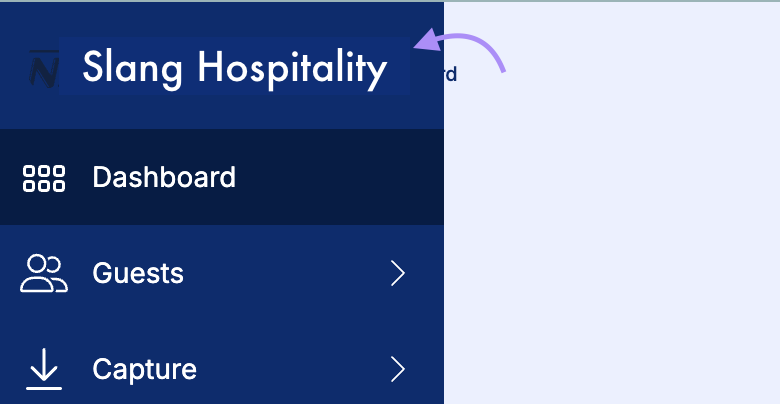
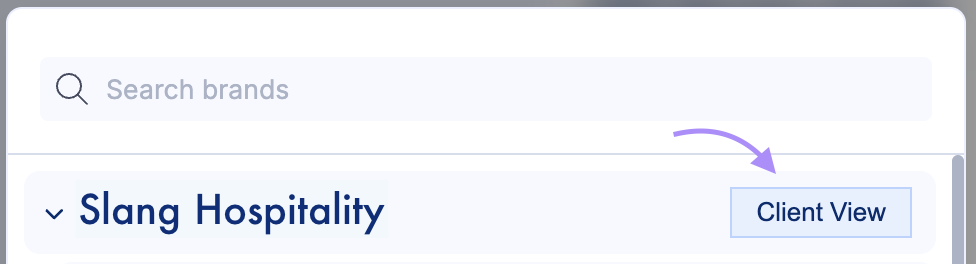
If you have more than one venue, ensure you are logged into Client View by clicking on the top-right navigation and selecting Client View in the pop-up window.
-
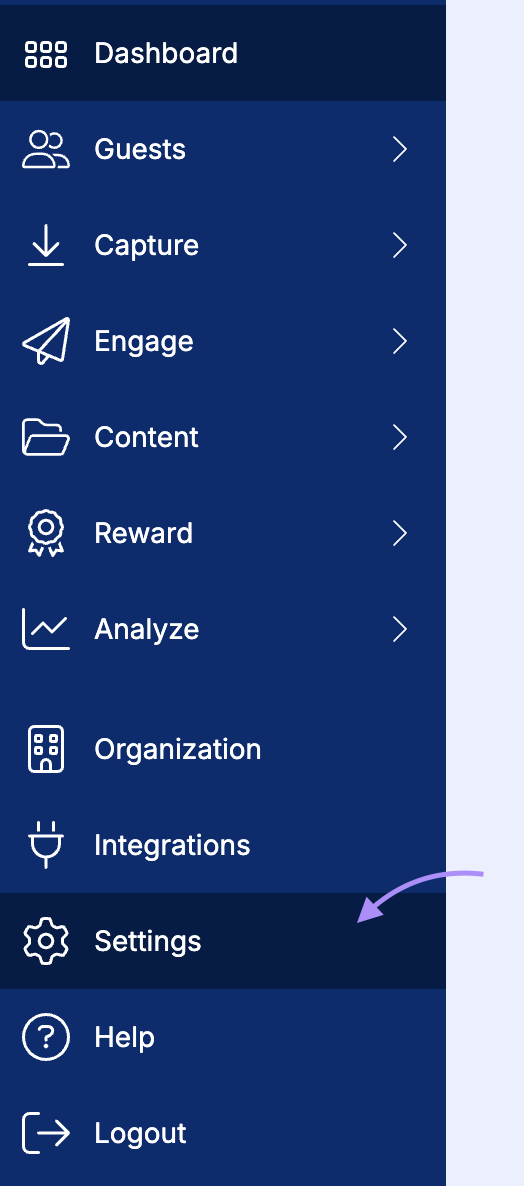
Next, go to Settings.
-
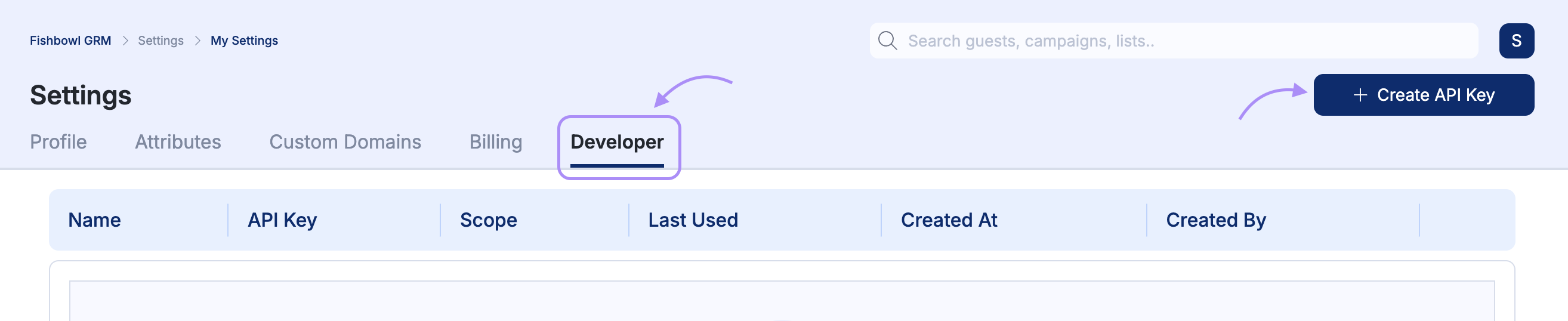
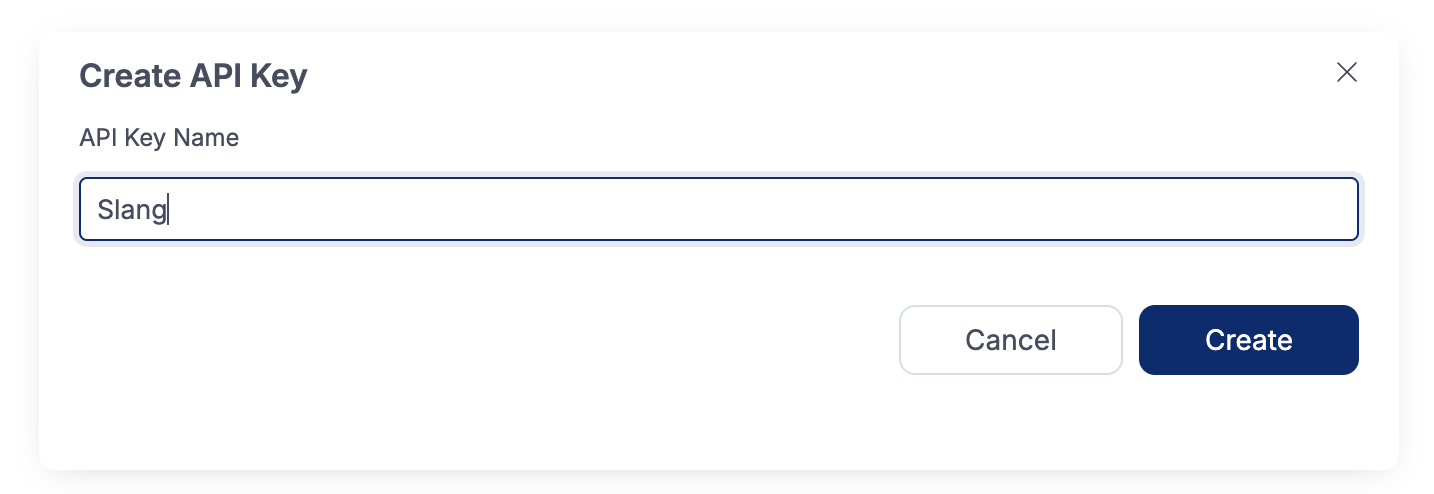
Click on the Developer tab, and then Create API Key.
-
Name it Slang for your reference.
-
Click Create and copy the key.

How to Connect Fishbowl to Slang
-
Log in to your Slang dashboard.
-
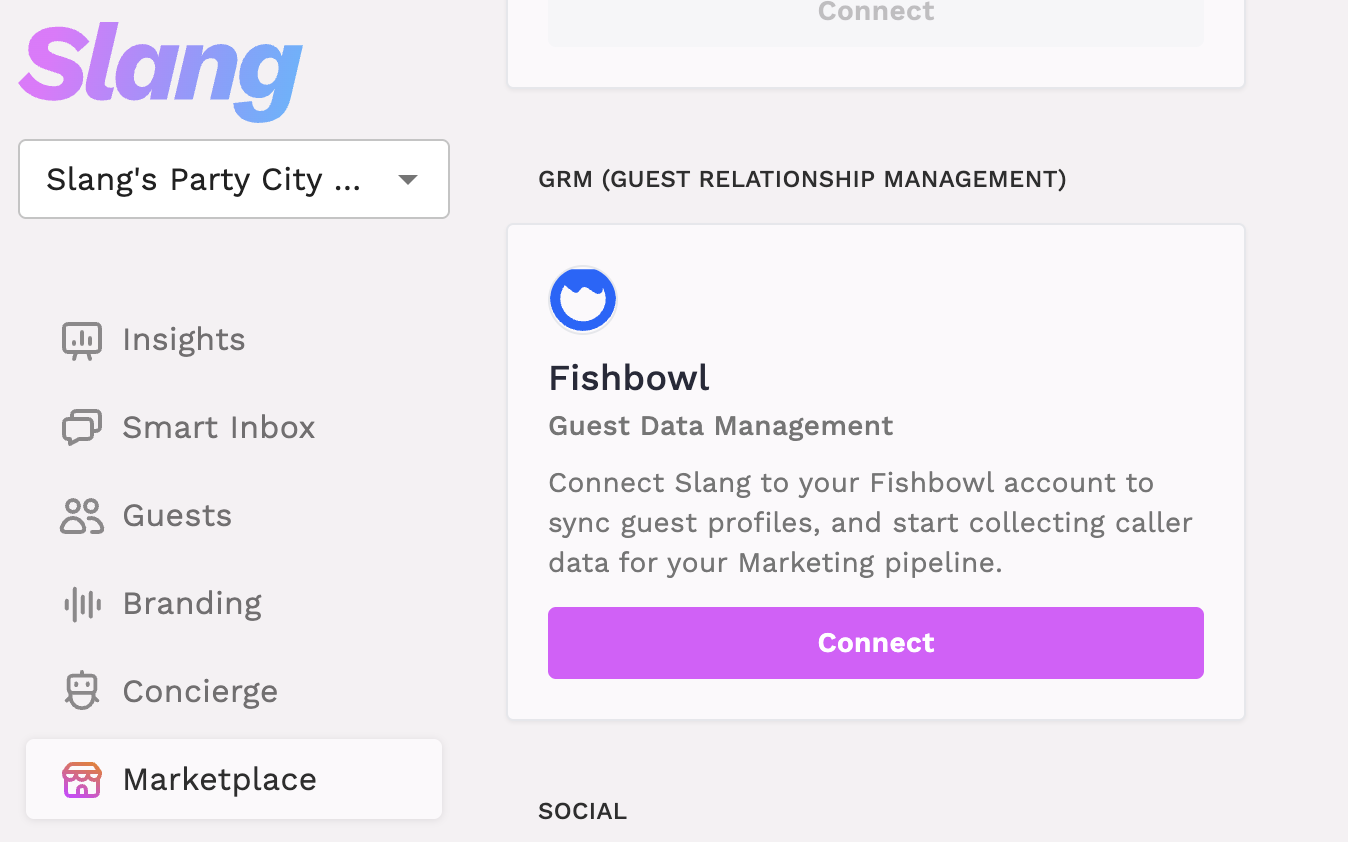
Navigate to the concierge you'd like to connect and click on Marketplace.
-
Find Fishbowl in the integrations list and click Connect.
-
Enter your Fishbowl API credentials that you copied earlier when prompted.
-
Select the Brand and Store associated with the Slang concierge you're logged into.
-
Click Save to complete the connection.
Once connected, Slang will begin syncing guest data from Fishbowl. Existing guest records in SmartInbox will be enriched with Fishbowl data as matches are found.
Note: Fishbowl does not aggregate guest data across multiple locations. If your restaurant group has more than one location, each location's Fishbowl data is managed separately.
What You'll See in Smart Inbox
After the integration is active, guest data from Fishbowl will appear in two places:
Smart Inbox (flat view)
-
Guest names pulled from Fishbowl are written to the guest record automatically
-
An email icon appears for guests who have an email address on file
-
A cake icon appears for guests with known birthday or anniversary dates
Drawer View (expanded record)
-
Full guest details, including email address and guest tags, are shown in the expanded conversation drawer
What You'll See in the Guests Tab
If you're on our Core subscription, while you don't have Smart Inbox as a feature, your callers will still benefit from streamlined booking experiences.
The Guests Tab of your Slang Dashboard will populate with guest names and phone numbers from your Fishbowl integration, ensuring smooth experiences with Slang even on their first call.
Troubleshooting
A guest's name isn't showing up in Smart Inbox/Guests Tab.
Guest data is matched by phone number. If the caller's number isn't on file in Fishbowl, or if it's listed under a different number format, a match won't be found. Check the guest's record in Fishbowl to confirm the phone number is saved correctly.
I'm not seeing the Fishbowl integration option in the Marketplace.
The Fishbowl integration is available on the Core and Premium subscriptions. If you don't see it in your integrations list, contact your Slang account manager to confirm your plan includes it.
Guest data stopped syncing.
This can happen if your Fishbowl API credentials expire or are rotated. Go to Settings > Integrations > Fishbowl and re-enter your credentials to restore the connection.